Article
Resize Video for Reels, TikTok and Feed Posts (9:16, 4:5 and the Blurred-Fill Trick)
A landscape clip posted vertically wastes the screen. Platform ratios, when to crop versus blurred fill, and how to reframe without encoding the file twice.
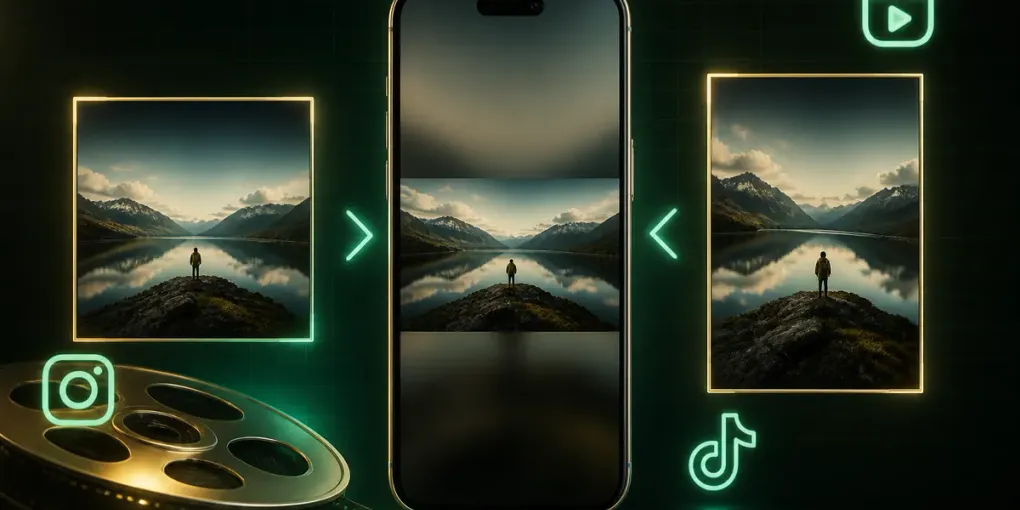
You shot a video in landscape. Now it needs to go on Reels, TikTok or Shorts — all of which are vertical — and every option looks bad:
- Post it as-is and it sits in a thin strip in the middle of the screen, surrounded by black.
- Crop it to vertical and you cut off half your subject.
There is a third option that most people do not know has a name, and it is what nearly every professional vertical repost uses. This guide covers the specs each platform wants, when to crop and when not to, and how to reframe without destroying quality.
1. What each platform actually wants
| Platform | Aspect ratio | Recommended size |
|---|---|---|
| Instagram Reels | 9:16 | 1080 × 1920 |
| TikTok | 9:16 | 1080 × 1920 |
| YouTube Shorts | 9:16 | 1080 × 1920 |
| Instagram feed (portrait) | 4:5 | 1080 × 1350 |
| Instagram feed (square) | 1:1 | 1080 × 1080 |
| YouTube (standard) | 16:9 | 1920 × 1080 |
The useful shortcut: 1080 × 1920 at 9:16 publishes natively to Reels, TikTok, Shorts, Facebook Reels, Stories, Pinterest and Threads. One export covers almost every short-form destination.
For the Instagram feed specifically, 4:5 beats 1:1. It occupies more vertical space as someone scrolls, which is free attention.
Upload MP4 or MOV with H.264 video and AAC audio. Every platform accepts this and it is what our exports produce.
2. The three ways to fit a landscape clip into a vertical frame
Crop to fill
Cuts the left and right edges away until the remaining strip fills the frame.
Use it when your subject is centred and the edges carry nothing — a talking head, a centred product, a single performer.
Avoid it when two people are in frame, text sits near an edge, or the composition matters. Cropping 16:9 to 9:16 discards roughly 68% of the width. That is not a trim, it is a different shot.
Letterbox
Shows the whole frame with black bars above and below.
Use it when losing any part of the frame is unacceptable — a screen recording, a chart, subtitled footage.
Avoid it as your default. On a 9:16 screen, a letterboxed 16:9 video occupies about a third of the height. The other two thirds are dead black, and short-form feeds punish that.
Blurred fill
Shows the whole frame, centred, over an enlarged and heavily blurred copy of itself.
This is the one with no downside worth mentioning. Nothing is cropped, nothing is lost, and the screen is full. The blurred backdrop reads as intentional design rather than as an unfilled gap — which is why it is what you see on nearly every professionally reposted vertical video.
Use it as your default for anything landscape going somewhere vertical.
3. Trim in the same pass — this matters more than it sounds
Reframing and trimming are almost always needed together, and doing them in two separate tools costs you real quality.
Every export re-encodes the video, and every re-encode is a lossy generation. Crop in one tool, then trim in another, and your footage has been through two lossy passes instead of one. On already-compressed source footage that is visible.
Do both in a single export and there is one pass. Our video resizer exposes the trim handles on the same screen as the ratio picker for exactly this reason.
4. Reframing a video, step by step
- Drop your video in. MP4, MOV, MKV and WebM all work, straight from your disk with no upload.
- Pick the ratio. 9:16 for Reels, TikTok and Shorts. 4:5 for an Instagram feed post.
- Choose how it fits. Blurred fill unless you have a reason to crop.
- Set the trim points. The preview seeks as you drag, so you can find the exact in and out.
- Set a max height. 1080p is right for every platform in the table. There is no benefit to uploading 4K to Shorts — the player is optimised for 1080p.
- Export. One re-encode, ratio and length both handled.
5. Common questions
Does resizing lose quality? The video is re-encoded, so slightly. At the default bitrate it is not visible. Cropping genuinely discards the edges of the frame; letterbox and blurred fill keep everything.
Should I upload 4K to get better quality? No. Shorts, Reels and TikTok all re-encode on their end and their players target 1080p. Uploading 4K gives you a much larger file, a slower upload, and no visible benefit. 1080 × 1920 is the right answer.
My video is already vertical but the wrong vertical. What now? 4:5 and 9:16 are both vertical but not interchangeable. Going 4:5 to 9:16 needs fill at the top and bottom; going 9:16 to 4:5 crops top and bottom. Blurred fill handles the first case cleanly.
Can I add a caption or title? Not in the resizer. If you are building the video from photos rather than reframing existing footage, our slideshow maker has titles and per-photo captions built in.
Is my video uploaded anywhere? No. Decoding, reframing and encoding all run in your browser, which is why there is no size limit.