Article
How to Convert JPG to MP4: Free, Online & Offline Step-by-Step Guide
Turn one JPG or a whole album into MP4 with no watermark. In-browser steps and FFmpeg, covering aspect ratio, duration and export quality so it stays sharp.
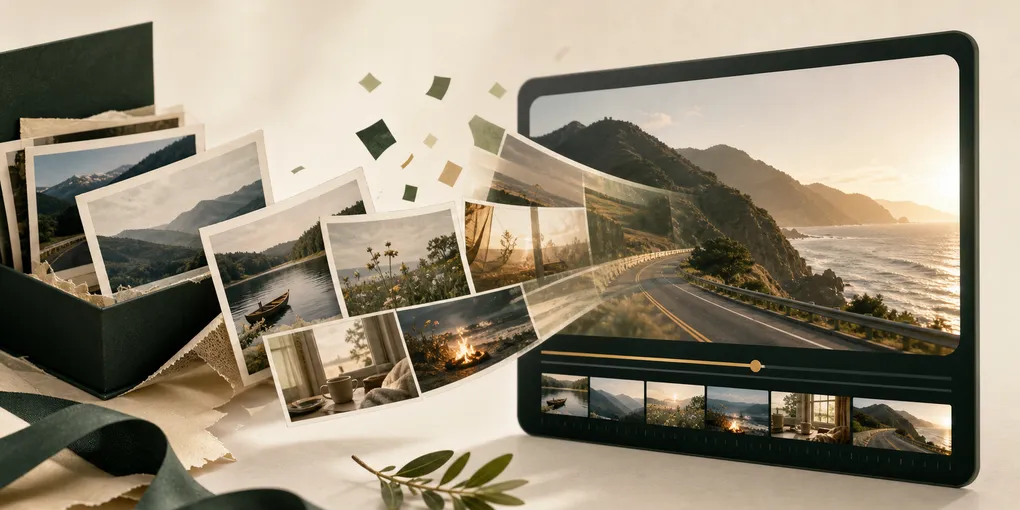
Converting JPG images into an MP4 video is one of the most common tasks whether you are creating a photo slideshow, preparing a social media post for Instagram or TikTok, or building a video background.
Whether you need to convert a single static JPG photo into a video clip or combine multiple JPG images into a timed slideshow with music, this comprehensive guide covers the best methods, key settings, and step-by-step instructions for every scenario.
Method 1: Convert JPG to MP4 Online for Free (No Watermark & Privacy-Safe)
The fastest and easiest way to convert JPG files to MP4 is by using a free online converter directly in your web browser.
Unlike traditional online converters that upload your personal photos to remote cloud servers, modern web tools process everything locally on your device using WebAssembly and Web Codecs. Learn more about privacy advantages in our free watermark-free online JPG to MP4 converter guide.
Step-by-Step Instructions:
- Open the Converter: Go to the JPG to MP4 Studio.
- Upload Your JPG Images: Drag and drop a single JPG file or select multiple JPG photos from your computer or mobile device.
- Choose Your Aspect Ratio:
- 16:9 for YouTube, TV, and widescreen monitors.
- 9:16 for TikTok, Instagram Reels, and YouTube Shorts.
- 1:1 for Instagram feed posts.
- Set Frame Duration: Choose how many seconds each image stays on screen (typically 2 to 4 seconds per photo).
- Adjust Image Fitting: Select Blurred Fill to avoid black sidebars when mixing portrait and landscape photos.
- Export & Download: Click Export MP4. The video will encode directly in your browser without adding any watermark or requiring account registration.
Method 2: Convert JPG to MP4 Using Desktop Software (Windows & Mac)
If you prefer offline desktop software, both Windows and macOS have built-in applications that can convert image sequences to MP4.
On Windows (using Microsoft PowerPoint):
- Create a new presentation and go to Insert > Photo Album.
- Select all the JPG photos you want to convert.
- Go to Transitions and set automatic slide timing (e.g., 3 seconds).
- Click File > Export > Create a Video.
- Select Full HD (1080p) and export the file as an MP4.
On Mac (using Apple iMovie):
- Open iMovie and create a new Movie project.
- Import your JPG photos and drag them into the timeline.
- Adjust the duration of each photo and turn off the default “Ken Burns” effect if you prefer static frames.
- Click File > Share > File and export the project as an MP4 video.
Method 3: Convert JPG to MP4 with FFmpeg (For Developers & Power Users)
For bulk conversions, command-line automation, or developer workflows, FFmpeg is the industry standard tool.
Convert a Single JPG into a 5-second MP4 Video:
ffmpeg -loop 1 -i image.jpg -c:v libx264 -t 5 -pix_fmt yuv420p output.mp4Combine Multiple Sequenced JPGs (001.jpg, 002.jpg, etc.) into a Video:
ffmpeg -framerate 1/3 -i img%03d.jpg -c:v libx264 -r 30 -pix_fmt yuv420p slideshow.mp4Explanation:
-framerate 1/3: Shows each photo for 3 seconds.-c:v libx264: Uses standard H.264 video codec.-pix_fmt yuv420p: Ensures maximum compatibility across mobile phones and browsers.
Key Settings for High-Quality JPG to MP4 Video Output
To make sure your exported video looks crisp, well-proportioned, and professional, keep these essential parameters in mind:
1. Aspect Ratio & Preventing Black Bars
When your JPG photos don’t match your target video shape (e.g., vertical smartphone photo converted to a widescreen video), you will often get ugly black bars on the sides. Check out our comprehensive guide on handling photo aspect ratios and black borders:
- Blurred Fill (Recommended): Fills the background with a blurred, softened version of the same photo.
- Crop to Fit: Crops the top/bottom or sides of the photo to fill the whole screen.
- Original Frame (Letterbox): Keeps the exact original photo boundaries with subtle neutral borders.
2. Pacing and Duration
Learn more about ideal slide display durations and timing strategies:
- Single Photo Clip: 3 to 10 seconds is usually ideal for social media posts or intro loops.
- Photo Slideshow: 2 to 4 seconds per photo keeps viewers engaged without rushing detailed group shots.
3. Resolution (720p vs 1080p vs 4K)
For tips on maximizing bitrates and visual crispness, explore our photo to video HD export quality guide:
- 1080p (1920x1080): The best default setting for online sharing, YouTube, and social media.
- 4K (3840x2160): Best for high-res photography portfolios and large TV displays (requires high-resolution source photos).
Frequently Asked Questions (FAQ)
Why does my exported MP4 look blurry?
If the output MP4 looks pixelated, check the resolution of your original JPG photos. Upscaling a low-resolution JPG (e.g., 640x480) to a 1080p video cannot restore missing detail. Always start with clear, high-resolution source images.
Is it safe to convert personal photos online?
With traditional cloud converters, your files are uploaded to third-party servers. However, using our local browser converter, all rendering happens locally on your computer’s memory. Your personal photos never leave your device.
Can I convert JPG to MP4 without watermark?
Yes! Our online tool is 100% free with no watermarks, no file limits, and no required account login. Read our free online JPG to MP4 no watermark guide for more details.
How can I add background music or voiceover to my photos?
If you want to add audio tracks alongside your images, check out our tutorial on combining audio and images into MP4 video.
Related Reading & In-Depth Guides
- Free Online JPG to MP4 No Watermark Guide — Discover the benefits of private, in-browser video creation.
- Aspect Ratio & Black Bars Guide — Learn how to seamlessly handle mixed portrait and landscape photos.
- Photo Slideshow Duration & Pacing Guide — Discover ideal slide timing and transition speeds.
- Photo to Video HD Quality & Export Guide — Learn how to export crisp 1080p and 4K MP4 videos.
- Image and Audio to Video Guide — Combine background music with static photos for social media.
Ready to Convert Your Photos?
Head over to the JPG to MP4 Studio to convert single or multiple JPG images into a high-quality MP4 video right in your browser!