Article
Free Online JPG to MP4 Converter with No Watermark and Zero File Uploads
Turn JPG photos into an MP4 slideshow in the browser for free. No watermark, no app to install, files stay on your device, and here is how local encoding works.
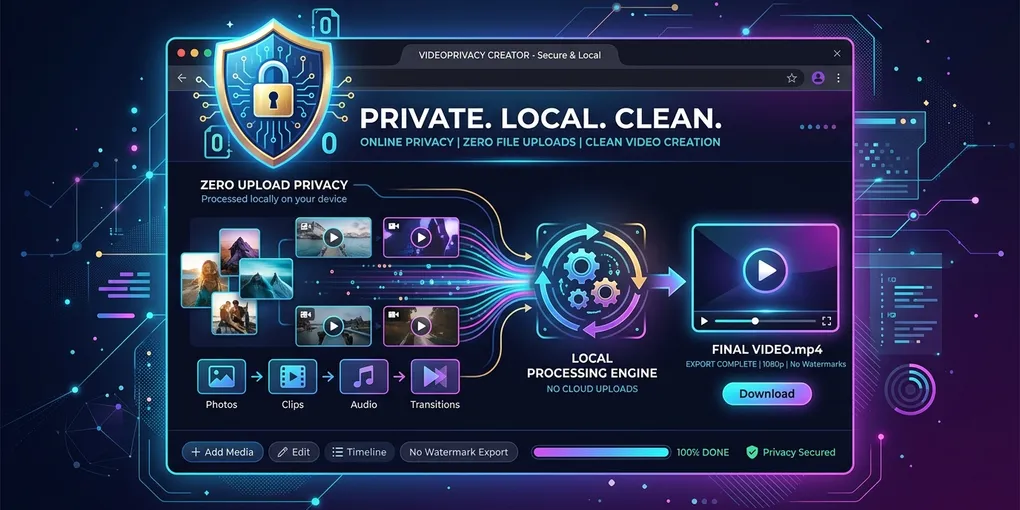
Have you ever tried turning a collection of personal photos into a simple MP4 video slideshow, only to run into frustrating paywalls, ugly watermarks, or security warnings?
- Forced App Downloads: Many converters force you to install heavy desktop software or mobile apps just to download your finished video.
- Aggressive Watermarks: Other free tools stamp huge company logos across the center of your video unless you pay for a monthly subscription.
- Privacy Concerns: Uploading family memories, personal photos, or unreleased business assets to unknown cloud servers always carries privacy risks.
- Blurry Compressed Output: Free tiers often compress videos down to fuzzy 480p resolutions, ruining your high-res photos.
This guide introduces a modern, 100% free, watermark-free, and completely private way to convert your JPG photos into MP4 videos directly in your web browser—without installing software or uploading files.
Quick Summary: Why Choose Local Browser Conversion?
No App Installation. No Server Uploads. Zero Watermarks.
- Instant Web Access: Open the JPG to MP4 Studio directly in Chrome, Edge, or Safari without registering an account.
- Upload Photos Locally: Drag and drop your JPG, PNG, or WebP images into the timeline. Your photos never leave your device memory.
- Customize Effects: Set canvas aspect ratios (9:16 for Reels/TikTok, 16:9 for YouTube, 1:1 for social feeds), adjust slide timing (2–4 seconds), and add soft transitions.
- Export Clean 1080p MP4: Harness modern browser hardware acceleration (WebCodecs) to export crisp, watermark-free MP4 videos in seconds.
Cloud Converters vs In-Browser WebCodecs Encoding
1. The Hidden Costs & Privacy Risks of Traditional Cloud Converters
Traditional online video converters process files on remote Linux servers. You upload your photos over the internet, wait in a server queue while FFmpeg renders your video, and then download the file back.
Because remote servers cost money for processing power and internet bandwidth, these platforms rely on aggressive monetization:
- Watermarking Free Exports: Forcing users to pay subscriptions to remove watermarks.
- Restricting Resolution: Limiting free users to blurry 480p videos while locking 1080p/4K behind paywalls.
- Forcing Mobile App Installs: Pushing users toward native apps to display advertisements.
2. How Local WebCodecs Encoding Protects Your Privacy
Modern web browsers like Chrome, Edge, and Safari include powerful native APIs called WebCodecs and WebAssembly. This means:
Your web browser now has the native capability to render and encode MP4 videos locally using your device’s own GPU and CPU!
In our JPG to MP4 Studio, image decoding, aspect ratio blurred fills, slide transitions, and MP4 H.264 video encoding take place entirely inside your browser:
- 0 Files Uploaded: Your photos are processed in local device RAM and never touch remote servers.
- 100% Privacy Protection: Safely convert sensitive family pictures, baby photos, or private documents without worry.
- 100% Free with No Watermarks: Since no remote server bandwidth is used, you can export unlimited 1080p videos with zero watermarks.
3. Feature Comparison Table
| Feature | Traditional Cloud Converters | Local WebCodecs Studio (Our Tool) |
|---|---|---|
| File Uploads | Required (Sent to remote servers) | Zero Uploads (Processed locally in RAM) |
| Privacy & Security | Data stored on third-party servers | 100% Private (Photos stay on your device) |
| Watermarks | Forced logos on free tier | Zero Watermarks (100% clean export) |
| Video Quality | Often capped at 480p/720p for free | 1080p Full HD & 4K Ultra HD |
| Conversion Speed | Capped by internet upload speeds | Powered by local GPU/CPU (Instant rendering) |
| Installation | Requires account sign-up or apps | No Install Required (Works instantly in browser) |
Step-by-Step Guide: Create Watermark-Free MP4 Videos
[1. Add Photos] ➔ [2. Adjust Canvas & Timing] ➔ [3. Export Clean MP4]Step 1: Open the Studio and Add Your Photos
- Launch the JPG to MP4 Studio.
- Click “Choose Images” or drag and drop JPG, PNG, and WebP photos into the upload box.
- Drag thumbnails in the timeline to arrange your desired story order, or click “Capture Time” to sort chronologically.
Step 2: Set Canvas Ratio and Slide Timing
- Choose Canvas Aspect Ratio:
- Select 9:16 Vertical for TikTok, Instagram Reels, and Shorts.
- Select 1:1 Square or 4:5 Portrait for Instagram Feed.
- Select 16:9 Widescreen for YouTube or TV viewing.
- Apply Blurred Backgrounds: Enable Blurred Fill to fit different photo sizes without ugly black side borders.
- Set Slide Duration: Set slide duration to 2.5–3.5 seconds per image, and enable Crossfade for smooth visual flow.
Step 3: Export Clean, High-Definition MP4
- Click Export MP4.
- Watch as your browser encodes your photos into a genuine H.264 MP4 video file in seconds.
- Save the crisp, watermark-free video directly to your phone or computer.
Pro Tips and Pre-Export Checklist
1. Managing Large Batches of High-Res Photos
While browser hardware acceleration is fast, loading 80+ high-res DSLR photos can consume significant RAM:
- Tip: Keep photo batches under 80 images per video for optimal speed. If your photos exceed 20MB each, consider resizing them slightly on your phone before importing.
2. Test Offline Functionality for Peace of Mind
Want to verify that your photos aren’t being uploaded?
- Test It: Open the website, turn off your Wi-Fi or disconnect from the internet, and drag your photos into the tool. You will see that the entire slideshow creation and MP4 export process works 100% offline!
3. Pre-Export Checklist
- Photo Sequence: Are your photos arranged in logical order?
- No Watermark Check: Confirmed clean video output with zero third-party logos.
- Privacy Guaranteed: Verified zero file upload processing.
- Aspect Ratio: Canvas ratio matches your publishing destination (9:16 vs 16:9).
- Resolution: Export resolution set to 1080p Full HD for maximum crispness.
Frequently Asked Questions (FAQ)
Q1: Is it really true that my photos are never uploaded to any server?
A: Yes, 100% true. You can test this by opening the converter page, disconnecting your Wi-Fi, and converting photos to MP4 completely offline. All image processing and MP4 video encoding take place locally inside your browser memory.
Q2: Why is the exported MP4 video free without watermarks?
A: Traditional converters charge money or add watermarks because hosting cloud servers is expensive. Our converter runs inside your browser using your own computer’s hardware, costing us zero server fees—allowing us to offer a completely free, watermark-free tool.
Q3: Does this work on iPhone and Android mobile browsers?
A: Yes! The studio is fully responsive and compatible with Safari on iOS and Chrome on Android. You can select photos directly from your phone gallery and save MP4 videos straight to your device.
Q4: Which video formats can I export?
A: By default, the tool exports universal H.264 MP4 files compatible with all phones, computers, and social media platforms. WebM export is also supported as a fallback option.
Conclusion & Related Guides
Creating beautiful video slideshows shouldn’t require compromising your photo privacy or accepting ugly watermarks. Thanks to modern browser technology, you can convert photos into HD videos with complete peace of mind.
To get the most out of your video slideshows, explore our related guides:
- How to Convert JPG to MP4 Complete Guide — Learn fundamental steps to turn single or multiple JPGs into video.
- Aspect Ratio & Black Bars Guide — Learn how to handle mixed portrait and landscape photos.
- Photo Slideshow Duration & Pacing Guide — Discover ideal slide timing and transition speeds.
- Photo to Video HD Quality & Export Guide — Learn how to export crisp 1080p and 4K MP4 videos.
- Image and Audio to Video Guide — Combine background music with static photos for social media.
Ready to make your first watermark-free video? 👉 Start Converting Photos in the JPG to MP4 Studio