Article
How to Convert Audio & Image to Video Online (Free MP3 to MP4 Converter)
Combine cover art with an MP3 or WAV into a 1080p MP4 for YouTube or TikTok. Blurred fill, aspect ratio, and an optional waveform rendered on top of the image.
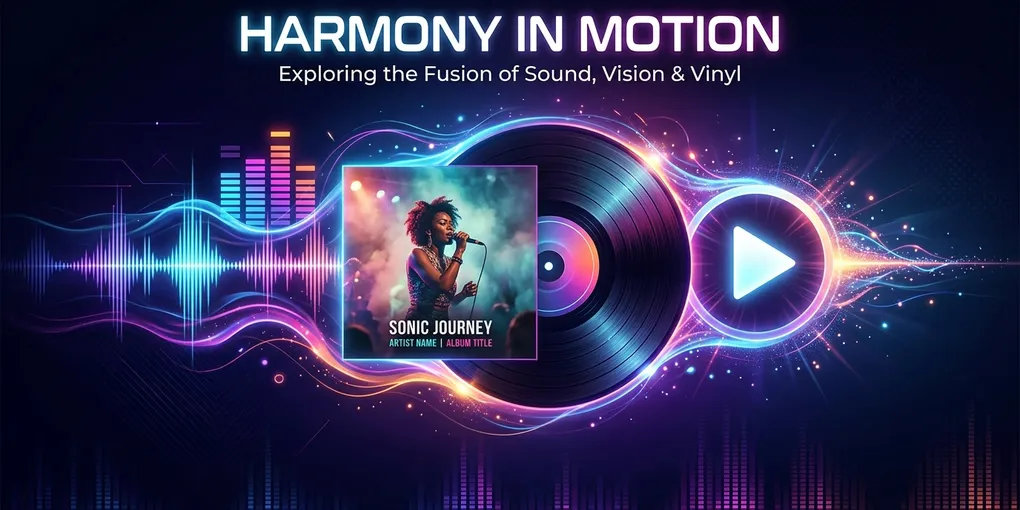
For independent musicians, podcasters, sound designers, and content creators, converting audio and images into video is an essential daily workflow. You often have a finished MP3 or WAV audio track and a high-resolution album cover art image (JPG/PNG). However, major platforms like YouTube, Bilibili, and TikTok do not accept raw audio files—they mandate a video format (MP4, MOV, or WebM) for all uploads.
If you are looking for the fastest, most effective way to convert MP3 to video with cover image, this guide provides a step-by-step walkthrough, aspect ratio guidelines, tool comparisons, and practical troubleshooting tips.
🛑 First, Clarify Your Goal: MP4 Video Conversion vs. MP3 ID3 Tagging?
Before starting, confirm which output format you actually need:
- You want to publish your music to YouTube, TikTok, or video platforms: 👉 You need to combine audio and image into an MP4 video file. This is what this guide covers!
- You only want the cover art to show in music players (like Apple Music or Spotify local files): 👉 You do not need to convert to video. Instead, you need to edit the file’s ID3 metadata tags using software like Mp3tag or Kid3 to embed artwork inside the MP3 file itself.
If you need a video file ready for upload to YouTube or social media, follow the step-by-step tutorial below.
🚀 Step-by-Step Tutorial: Convert MP3 to Video with Image Free Online
Using modern browser capabilities, you can generate high-definition MP4 videos directly inside your web browser—no software downloads, complex video editing timelines (like Premiere or CapCut), or terminal commands required. If you only need to combine multiple photos into a basic image slideshow, explore our step-by-step JPG to MP4 guide.
Step 1: Upload Your Audio Track and Cover Artwork
Navigate to our Audio to Video Studio:
- Upload Audio File: Select your MP3, WAV, M4A, or FLAC file. The tool automatically decodes audio metadata and detects the exact duration down to the millisecond.
- Upload Cover Image: Select your album artwork, podcast banner, or single graphic (JPG, PNG, or WebP format).
Step 2: Choose Your Platform Aspect Ratio
Selecting the correct aspect ratio ensures your video looks professional across different platforms:
- 16:9 (1920×1080 Widescreen): Best for standard YouTube videos, desktop playback, and Bilibili.
- 9:16 (1080×1920 Vertical): Best for YouTube Shorts, TikTok, Instagram Reels, and mobile stories.
- 1:1 (1080×1080 Square): Ideal for Instagram grid posts, promo teasers, and square cover displays.
Step 3: Configure Visual Layout & Audio Waveform Visualizer
Album cover art is typically square (1:1), while YouTube videos use widescreen (16:9). Placing a square image on a widescreen video can result in awkward black bars on the sides. Customize your layout to solve this:
- Blurred Background Fill (Recommended): Keeps your album artwork crisp and centered, while scaling and applying a smooth Gaussian blur overlay across the background. Learn more about removing side borders in our aspect ratio and black bars guide.
- Centered Fit (Solid Background): Displays your original artwork centered against a clean, deep dark background for a minimalist aesthetic.
- Enable Audio Waveform Visualizer: Toggle on the dynamic audio waveform. The visualizer samples the audio amplitude peaks and renders animated bars that react in real-time as your music plays.
Step 4: Export High-Definition 1080p MP4 Directly in Browser
Preview your video creation and click “Generate MP4 Video”. Powered by client-side WebCodecs technology, all video frame rendering and audio multiplexing take place locally inside your browser. Large WAV files never get uploaded to external servers, delivering lightning-fast exports and 100% privacy for unreleased tracks.
📊 Audio to Video Conversion Methods Compared
Choose the right tool for your specific workflow:
| Method / Tool | Ease of Use | Render Speed | Watermarks / Limits | Privacy Security | Best For |
|---|---|---|---|---|---|
| This Browser Studio | ⭐ Extremely Easy | ⚡ Ultra-Fast (Local) | Zero Watermarks / 100% Free | 🔒 100% Client-side (No uploads) | Music releases, podcast video clips, unreleased demos |
| CapCut / Video Editors | ⭐⭐ Moderate | 🚀 Fast | Watermarks on free tiers / Heavy app | Standard | Multi-clip video editing & lyrics animation |
| FFmpeg CLI | ⭐⭐⭐⭐⭐ Developer | ⚡ Ultra-Fast | Free / Open Source | 🔒 100% Local | Developers & automated batch scripts |
| Traditional Cloud Converters | ⭐ Easy | 🐢 Slow (Uploads) | File size limits / Ads | ⚠️ Requires uploading to cloud | Quick one-off file conversion |
💡 Best Practices for Music Video Conversions
- Keep Visual Motion Active: Static images can feel dull to viewers. Adding a dynamic audio waveform visualizer or blurred background fill increases audience retention and visual polish.
- Use Lossless Master Audio: Always upload high-quality 320kbps MP3 or 24-bit WAV files to ensure your exported MP4 video retains pristine sound clarity. For video bitrate and clarity tips, read our photo to video HD quality & export guide.
- Optimize for Short-Form Content: For TikTok and Shorts, crop your audio to a 15–30 second hook and export in 9:16 vertical resolution. For pacing strategies, check our photo slideshow duration & pacing guide.
❓ Frequently Asked Questions (FAQ)
Q1: Will converting my MP3 to an MP4 video reduce audio quality?
No. Our browser converter decodes your source audio in high fidelity and re-encodes it into a high-bitrate AAC audio stream inside the MP4 container, maintaining original dynamic range and clarity.
Q2: Are my unreleased songs uploaded to any remote server?
No. All file processing, image scaling, waveform rendering, and MP4 encoding are performed 100% locally on your computer via browser WebCodecs. Your files never leave your device.
Q3: How do I remove black side bars when converting 1:1 artwork to 16:9 video?
Enable “Blurred Background Fill”. It automatically generates a soft, ambient background based on your cover artwork colors, seamlessly filling widescreen borders without distorting your original graphic.
Related Reading & In-Depth Guides
- How to Convert JPG to MP4 Complete Guide — Master photo slideshow creation and basic video conversion.
- Aspect Ratio & Black Bars Guide — Learn how to remove black sidebars and adjust framing.
- Photo Slideshow Duration & Pacing Guide — Master timing, transitions, and audio sync.
- Photo to Video HD Quality & Export Guide — Optimize resolution, bitrates, and audio-video encoding.
🎬 Turn Your Audio into Video Today
Skip complex software setups and cloud upload queues. Use our free Audio and Image to Video Converter Studio to export studio-quality MP4 videos ready for YouTube and social media!