Article
How to Make an Animated GIF From Photos (And Keep It Small Enough to Send)
Photos to GIF is easy; staying under a few megabytes is not. Why per-frame timing matters most, and which width, loop and count settings actually decide size.
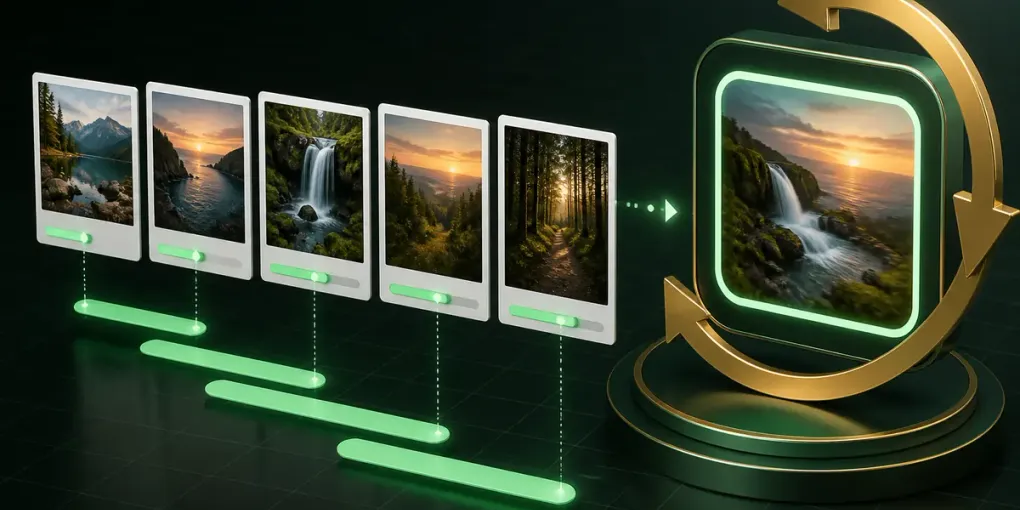
Making an animated GIF from a handful of photos should be a two-minute job. Then you check the file and it is 40 MB, and Discord, Slack and your email client all refuse it.
The usual advice — “reduce the quality” — misses the actual cause. GIF file size is driven by something much simpler, and once you know what it is the fix is obvious.
1. What actually determines GIF size
For a GIF built from photos, size is roughly:
frames × pixels per frameThat is it. Frame count and dimensions are the two levers, and frame count is usually where things go wrong.
Here is the trap. Many photo-to-GIF tools work at a fixed frame rate — say 10fps. If you ask for each photo to show for 3 seconds, the tool writes 30 nearly identical frames per photo. Six photos become 180 frames. A GIF that should have been six frames is now thirty times larger than it needs to be.
2. GIF supports a delay per frame — use a tool that uses it
The GIF format stores a separate delay value for every frame. A photo can occupy exactly one frame and simply be told to stay on screen for three seconds.
This is not an obscure feature — it has been in the format since 1989 — but plenty of converters ignore it and pad with duplicates anyway.
The difference is not subtle:
| Approach | Six photos, 3s each | Frames written |
|---|---|---|
| Fixed 10fps with padding | ~40 MB | 180 |
| One frame per photo with delays | ~1.5 MB | 6 |
Our JPG to GIF maker writes one frame per photo and sets each photo’s delay individually, which is why a slideshow GIF from it stays small enough to actually send.
3. The settings that matter
Width. The most direct lever after frame count. 480px is plenty for chat apps and social posts; 320px is fine for a small embed. Going from 640px to 320px cuts the pixel count to a quarter.
Time per photo. Costs nothing in file size when the tool uses per-frame delays — a 3-second photo and a 0.3-second photo are both one frame. Choose it for pacing, not for size.
Transition. An instant cut adds no frames. A crossfade has to draw the intermediate steps, so each transition adds several frames. Keep it off unless the smoothness genuinely matters.
Dithering. GIF allows only 256 colours per frame, so photographic content needs dithering to look acceptable. Floyd–Steinberg gives the best result on photos. It does add fine noise, which compresses poorly — so if size is critical and your images are flat or graphic, turning dithering off can help.
Looping. No size impact. Loop forever for reaction GIFs; play once for something with a clear ending.
4. GIF or MP4?
Worth asking before you start, because the answer is often MP4:
GIF wins when the destination is email (most clients still will not play video), a chat sticker slot, or anywhere you need autoplay and looping with zero configuration.
MP4 wins when the destination is a website or a social platform. The same animation is typically 80–90% smaller as MP4, and platforms like X and Instagram convert your GIF to video on upload anyway.
If you have already made a GIF and it is too large for where it is going, converting it is usually easier than rebuilding it — see our GIF to MP4 guide.
5. Making a GIF from photos, step by step
- Drop your photos in. JPG, PNG, WebP and HEIC all work — iPhone photos need no conversion first.
- Set the order. Drag to reorder, or remove anything that does not belong.
- Set the time per photo. Adjust all at once, or click a single photo to fine-tune just that one.
- Pick a ratio and how photos fit it. Crop to fill, show the whole photo, or blurred fill.
- Choose a width. 480px is a good default; drop to 320px if the file needs to be smaller.
- Create and download.
6. Common questions
How many photos can I use? Up to 60 in one GIF. In practice the file size becomes the real limit before the count does.
Why is my GIF still large with only a few photos? Check the width and whether crossfade is on. Photographic content with dithering at 640px adds up quickly — try 320px first.
Can I control how long each photo shows? Yes, individually. Because each photo is one frame with its own delay, varying the timing costs nothing in file size.
Will the GIF loop? By default, forever. You can set it to play once instead.
Do HEIC photos work? Yes. HEIC is decoded in your browser, so iPhone photos work directly without converting to JPG first.
Are my photos uploaded? No. Decoding, quantising and GIF encoding all happen in your browser, which is why there is no file count or size cap.