
Insights
Upscale Image: When to Sharpen, When to Regenerate, and How to Deliver Better Files
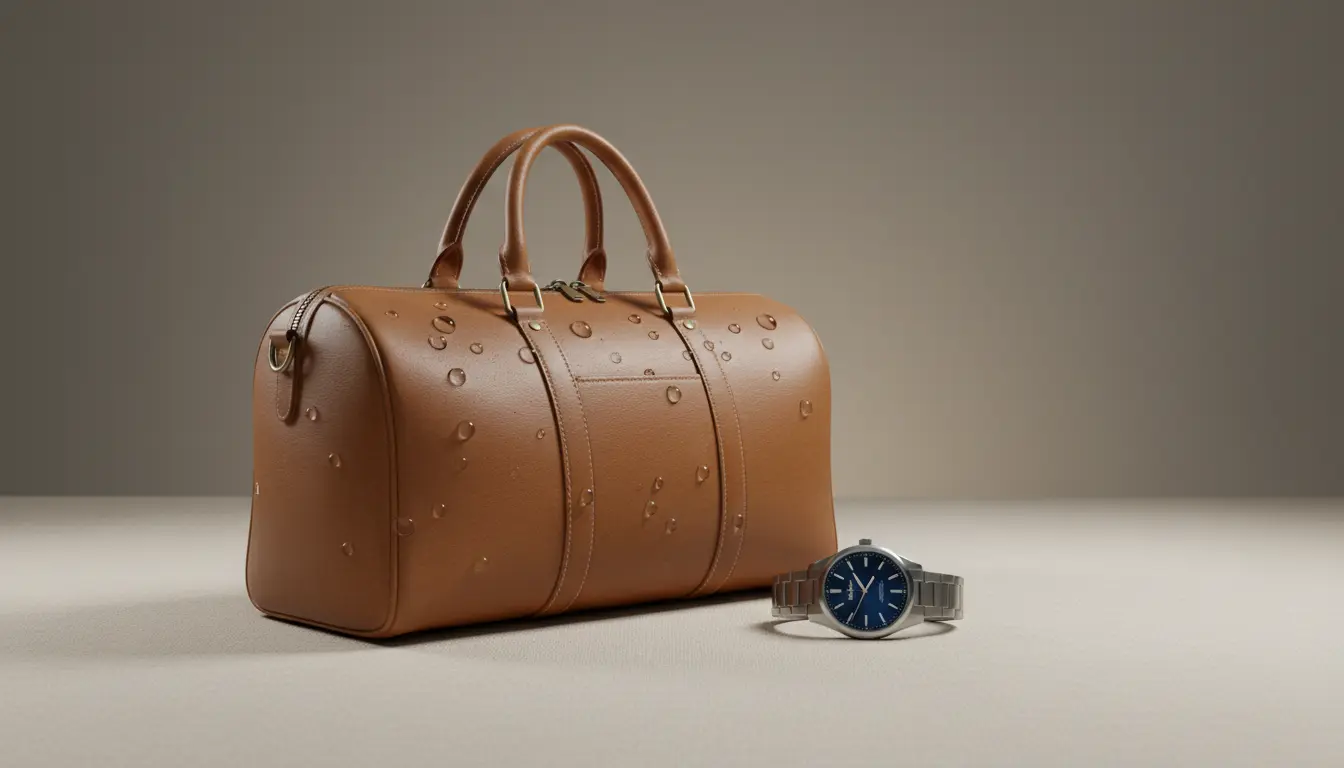
If you need to Upscale Image files often, the real question is not whether AI can make a photo look sharper. The real question is whether the current image already has the right composition, subject, and timing. If it does, upscaling is often the fastest path to a better final asset.
Teams usually Upscale Image files when the original shot is almost good enough but falls apart at the last moment: product zoom looks soft, portrait delivery needs more facial detail, paid social crops reveal blur, or a slide deck needs a larger version of the same image instead of a total remake.
Quick links
When it is smarter to upscale instead of regenerate
Use the Upscale Image page when the image already works compositionally:
- The framing is right.
- The subject choice is right.
- The overall mood is right.
- The only real problem is usable detail.
That is where upscaling saves time. Regeneration can create a different image. Upscaling helps preserve the image you already chose.
Where upscaling creates the most value
The strongest outcomes usually show up in practical delivery contexts:
- Product pages that need cleaner zoom and crop performance
- Social creatives that need better sharpness after resizing
- Portrait packages where facial detail matters more than dramatic editing
- Print or deck exports that need a bigger, cleaner source file fast
In all of those cases, teams Upscale Image files because the cost of remaking the image is higher than improving the one they already approved.
How to choose the right amount of scaling
The safest rule is simple: use the smallest scale that solves the delivery problem.
- Use lighter scaling for web crops and standard content updates.
- Use stronger scaling for storefront zoom, presentation slides, and print preparation.
- Turn on face enhancement only when the face is important in the final crop.
That last point matters. Portraits and creator assets often benefit from extra facial clarity. Products, packaging, and landscapes usually look better when texture stays natural and the upscale remains less aggressive.
Why Remove Background often comes before Upscale Image
In some workflows, the best order is not sharpen first. It is isolate first.
If the final deliverable depends on a clean subject, move through Remove Background before you Upscale Image. That gives you a cleaner source for transparent exports, layout work, and post-upscale reuse across marketplaces and branded comps.
This pairing is especially useful for:
- Ecommerce product cutouts
- Creator portraits used in multiple backgrounds
- Ad assets that need both isolation and sharper detail
Common mistakes teams make
- Using 4x scaling by default when 2x would already solve the problem
- Expecting AI to fix framing problems that really need regeneration or editing
- Applying face enhancement to non-portrait images
- Sending a blurry isolated subject into design without sharpening it first
The point of an Upscale Image workflow is not to chase maximum resolution. It is to create the most usable version of the approved asset.
Final takeaway
When the composition already works, Upscale Image is often the shortest path from “almost ready” to “ready to publish.” Start on the Upscale Image page, use only the scale you need, and pair it with Remove Background whenever the final asset depends on clean cutouts as well as sharper detail.