Please select a model to get started
Please select a model to get started
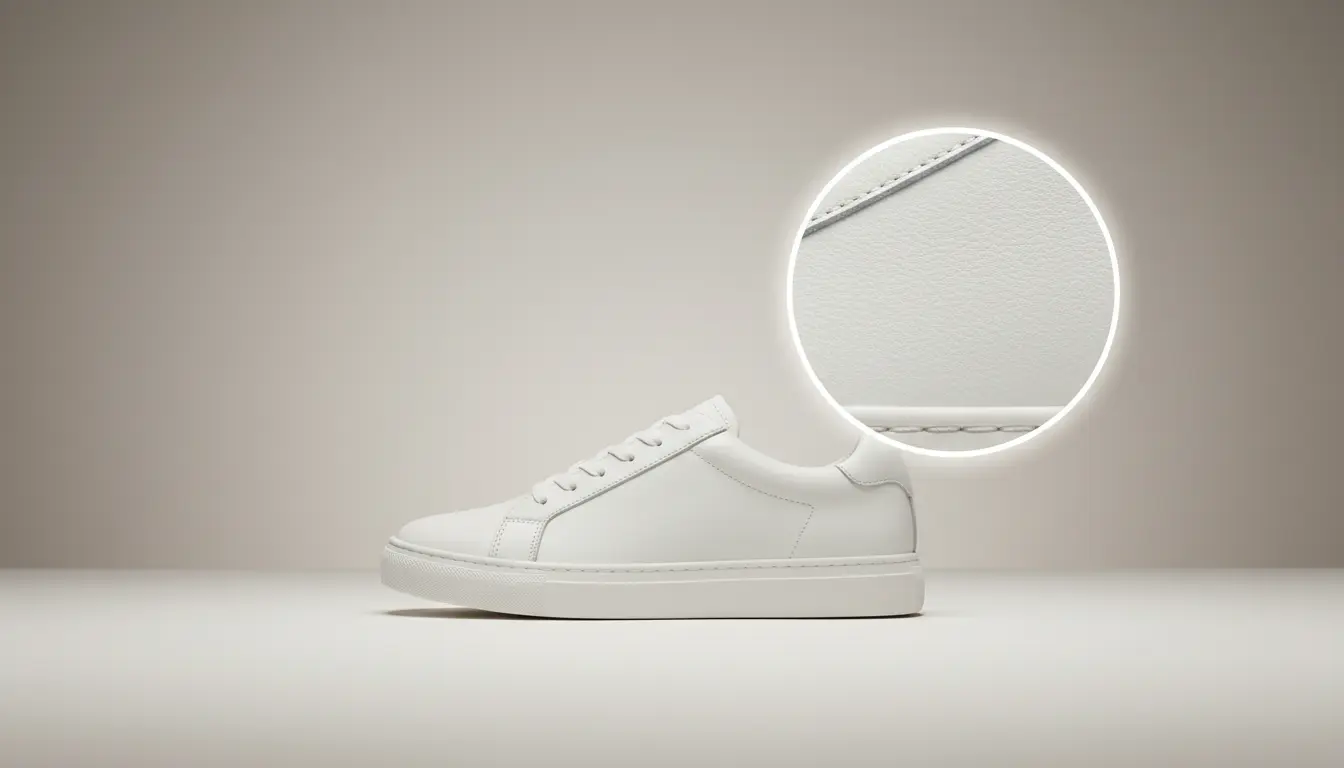
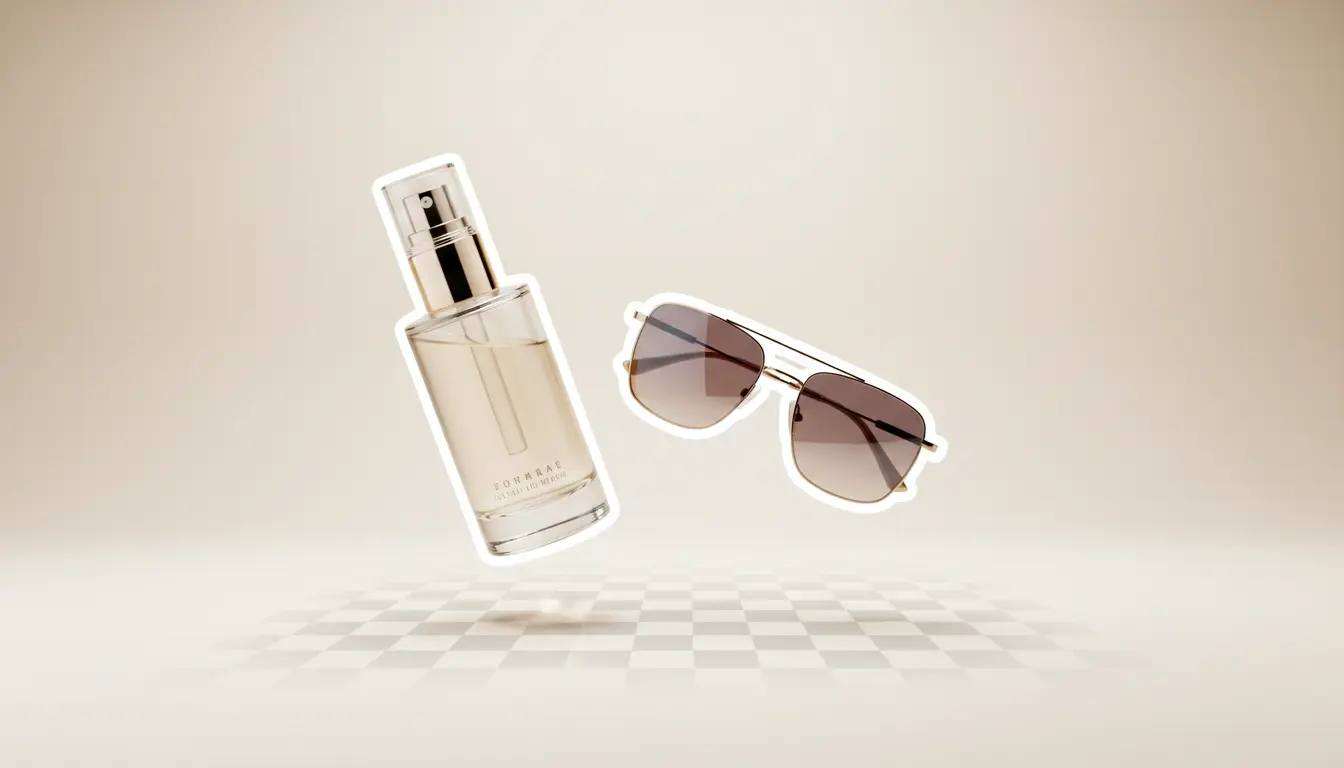
A strong cutout is not just about deleting a backdrop. It is about making the next step easier for ecommerce teams, paid media designers, and social editors.
When product teams need fresh hero shots, marketplaces, ads, and comparison cards all at once, fast isolation matters. A clean cutout lets you swap colors, add gradients, test seasonal layouts, and publish polished listing art without waiting on a manual retouch queue.
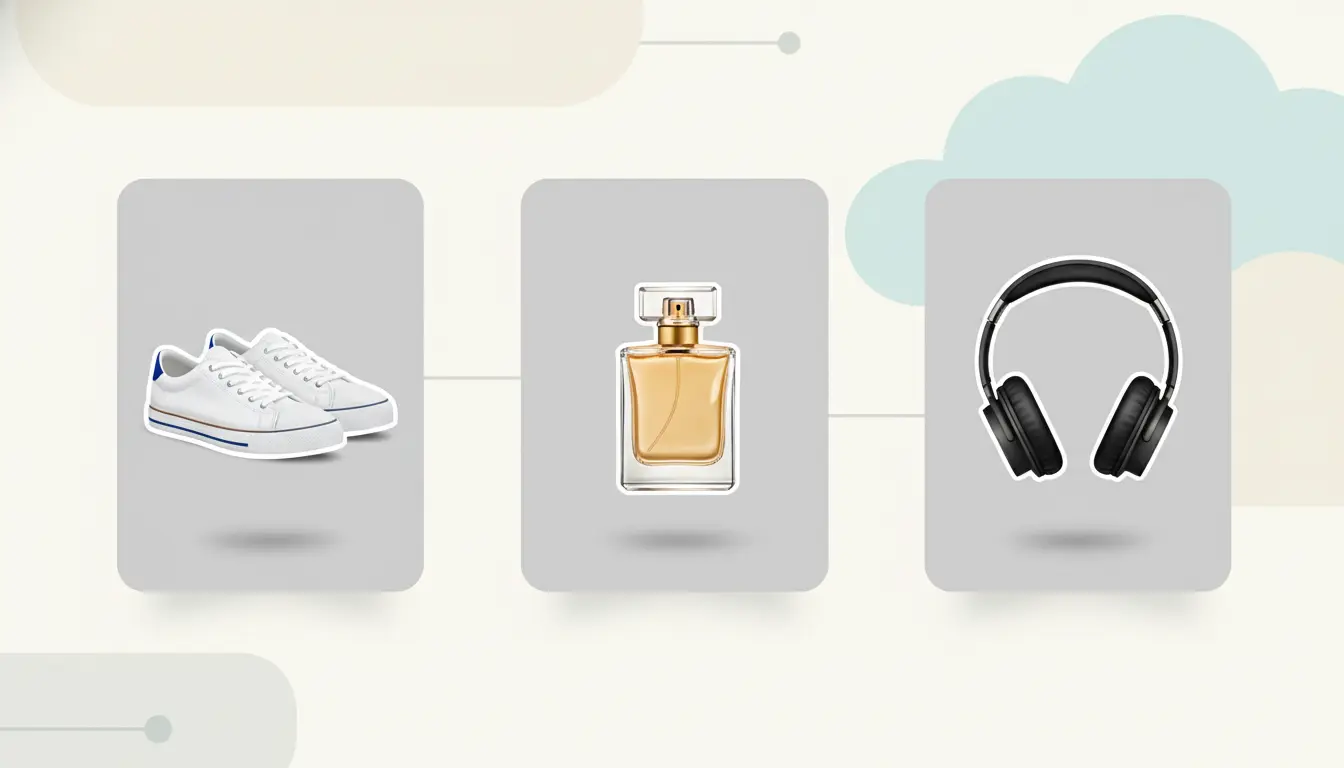
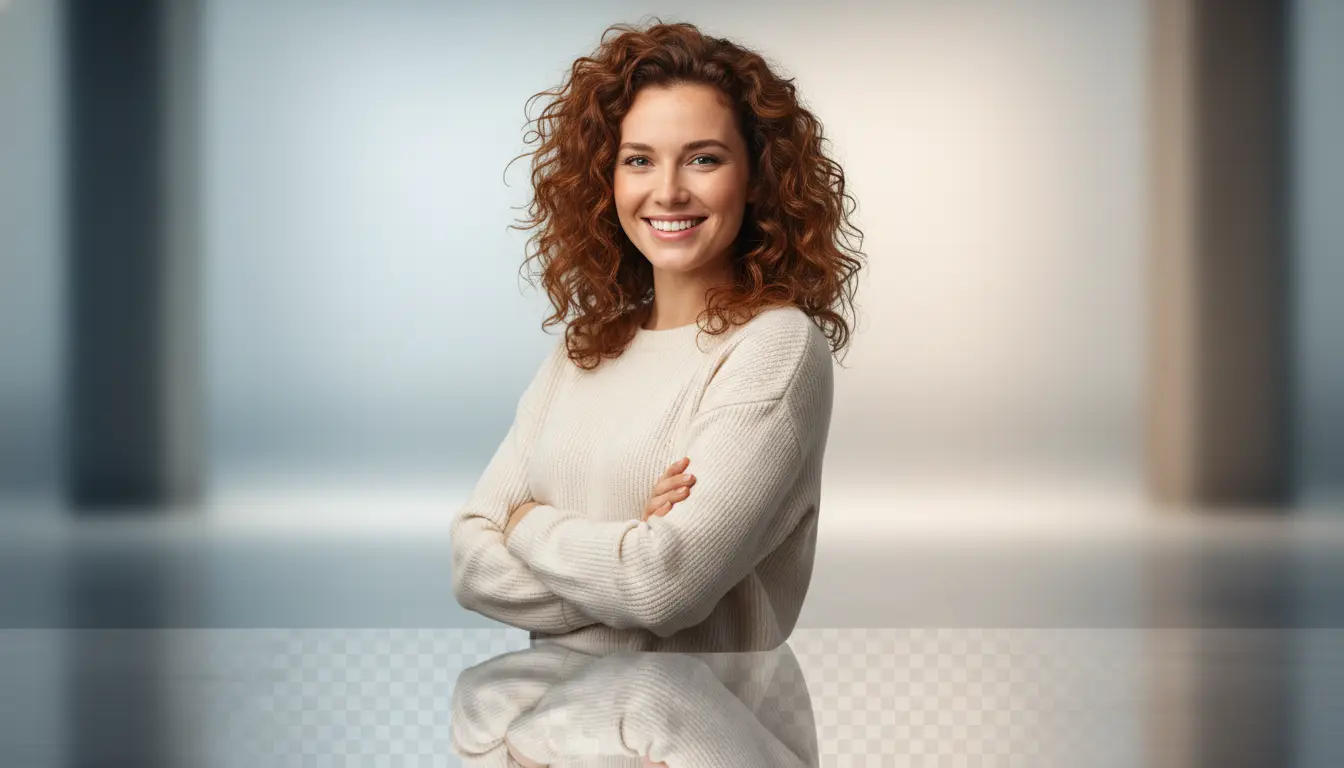
The best Remove Background From Image workflow protects the details that usually break trust: flyaway hair, soft fabric edges, glass frames, and subtle shadows. That keeps creator portraits, team headshots, and campaign visuals looking natural instead of obviously clipped.
After you isolate the subject, keep momentum with related tools and supporting content that help you finish the asset instead of stopping at the cutout.
Move the clean cutout into our Upscale Image page when you need better texture, cleaner product zooms, or crisper export quality for print and ecommerce.
Need more than a transparent cutout? Jump into AI Image Editor workflows to add new scenes, fix composition, or place the subject into a new campaign layout.
If you are still missing the original shot, start with AI Image Generator, create product or lifestyle imagery, then bring the best frame back into your removal workflow.
See which images are easiest to isolate, where manual cleanup still matters, and how to connect transparent cutouts to better ecommerce and social workflows.
Use this workflow for product listings, creator portraits, and landing page graphics without learning a complex editor first.
Start with a product photo, portrait, packaging shot, or branded graphic. Single-subject images usually move fastest, but the tool also helps when you need to rescue busy scenes for ads and content repurposing.
Check the places that matter most: hair, ears, glass rims, sleeves, straps, and small product details. If the subject already looks usable at thumbnail size and crop size, you can move straight into design production.
Once the background is gone, place the asset into a product grid, add a new backdrop in your editor, or move it to Upscale Image for sharper delivery across storefronts and campaigns.
Common questions about Remove Background From Image workflows, file handling, and what to do after the cutout is finished.
Product shots, portraits, accessories, packaging, and simple lifestyle scenes usually work best. Clear contrast between the subject and backdrop helps the model separate edges more cleanly.
Yes. This page is designed for ecommerce-friendly cutouts, especially when you need white, transparent, or branded replacement backgrounds for listings, ads, and comparison cards.
Hair, soft fabric, and transparent details are the areas worth checking most closely. Strong source lighting and a defined subject outline usually lead to the cleanest result.
Not always. If you only need a transparent subject, you can export and use it immediately. If you want sharper detail or a brand new composition, move next to Upscale Image or AI Image Editor.
For high-volume production, quick testing, and most social or marketplace assets, AI is much faster. Manual retouching is still useful when you need pixel-perfect luxury product cleanup.
Yes, but the cleanest results usually come from one clear subject at a time. For mixed scenes, review the result carefully before sending the cutout into paid media or print.
Fast AI workflow - Great for ecommerce and portraits - Easy next-step editing