Please select a model to get started
Please select a model to get started
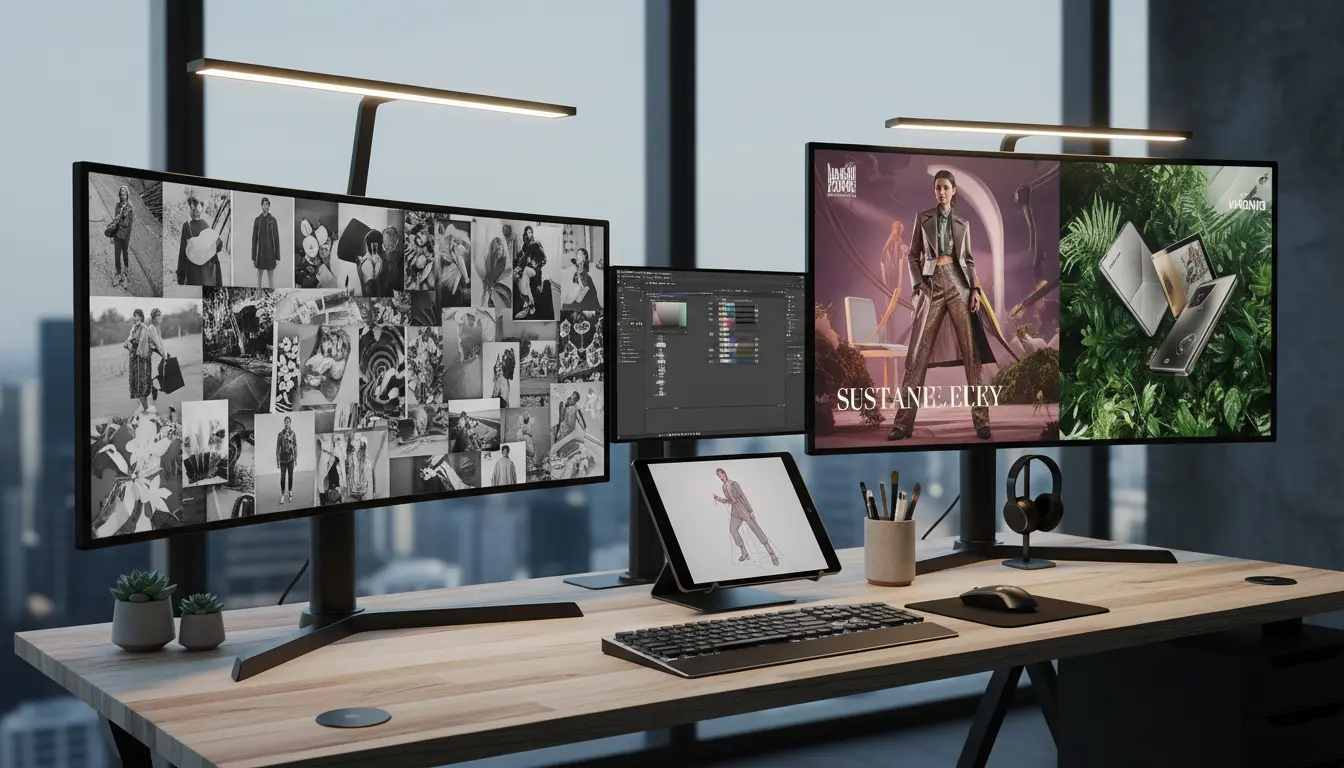
Generation gives you options. Editing is what makes the chosen option usable in a real layout, real campaign, or real product flow.
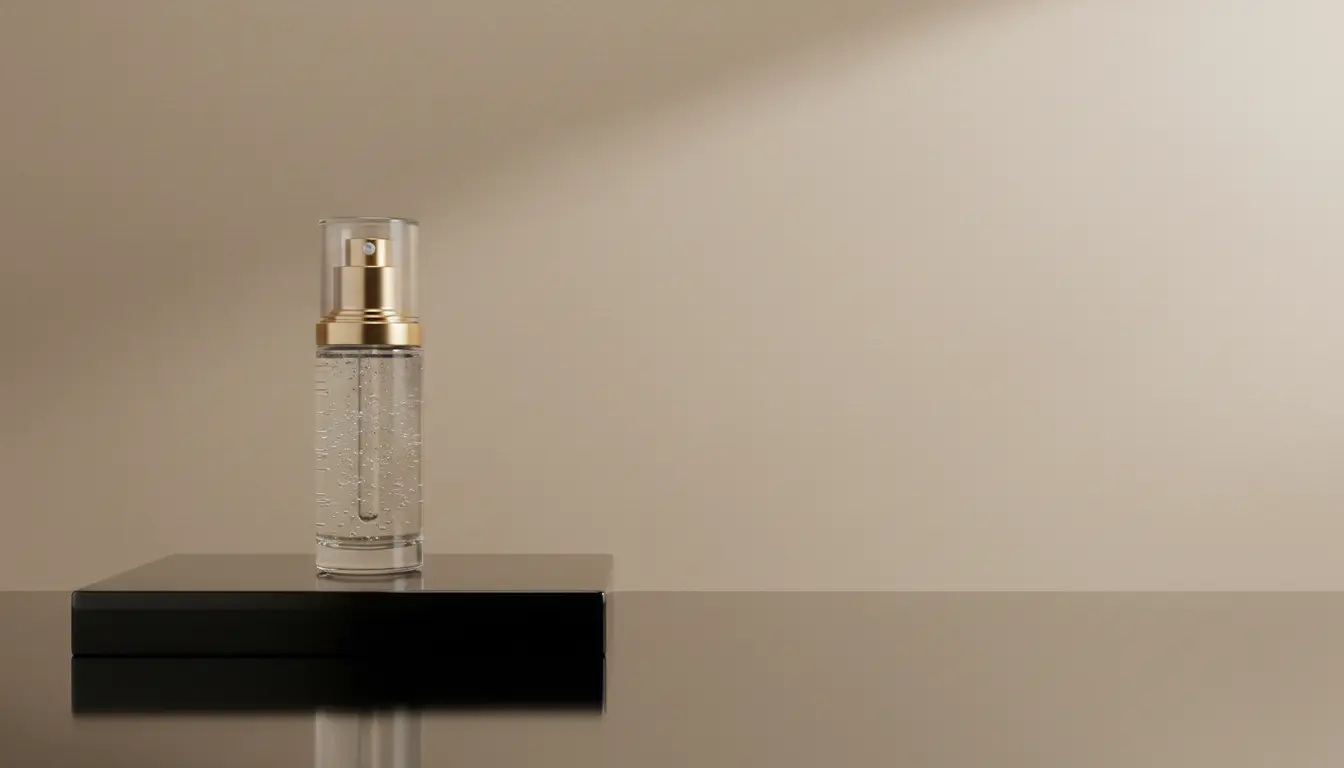
That could mean swapping a plain backdrop for a premium retail scene, opening extra copy space, cleaning distracting elements, or adapting a hero image for another channel. The fastest path is often editing the right image, not regenerating another batch from scratch.
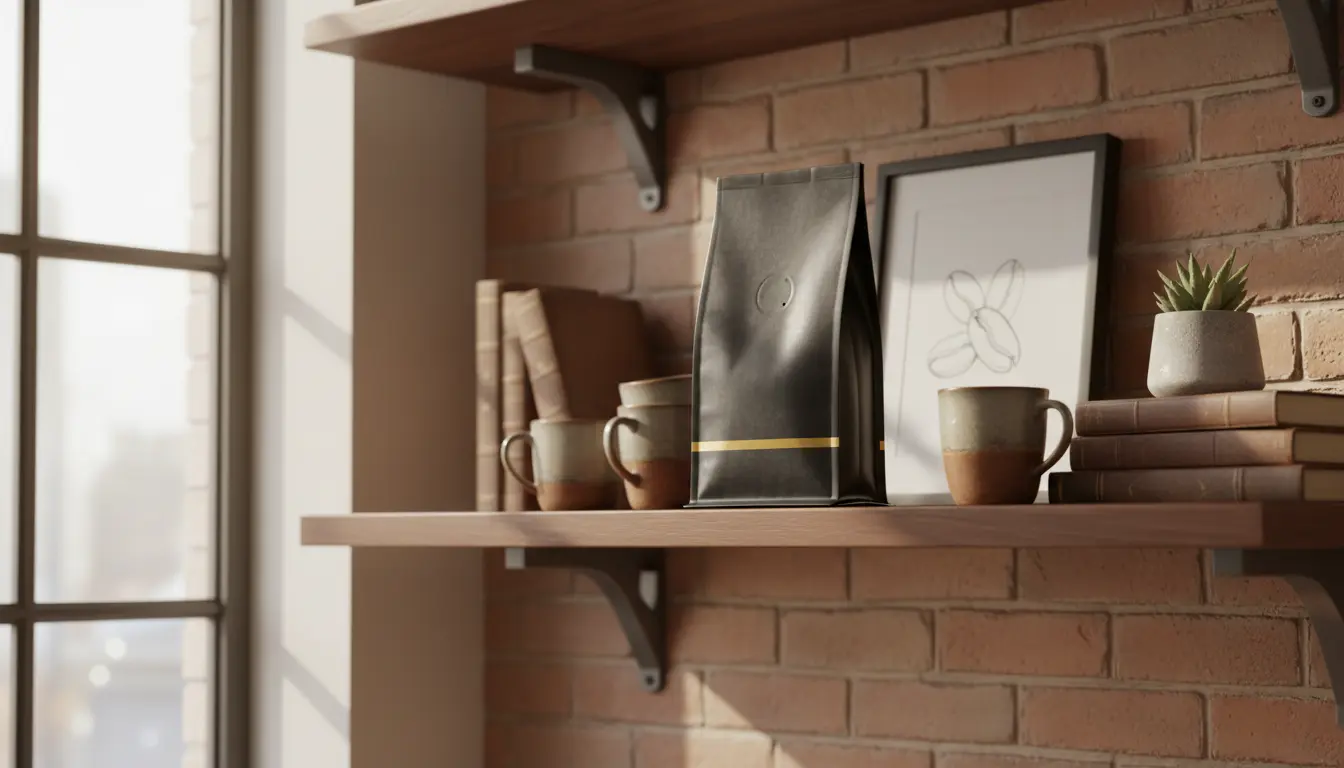
An AI Image Editor is most useful when you need to preserve brand feel while changing crop logic, composition, styling details, or scene context. That helps one approved visual keep working across product pages, paid social, email, and launch decks.
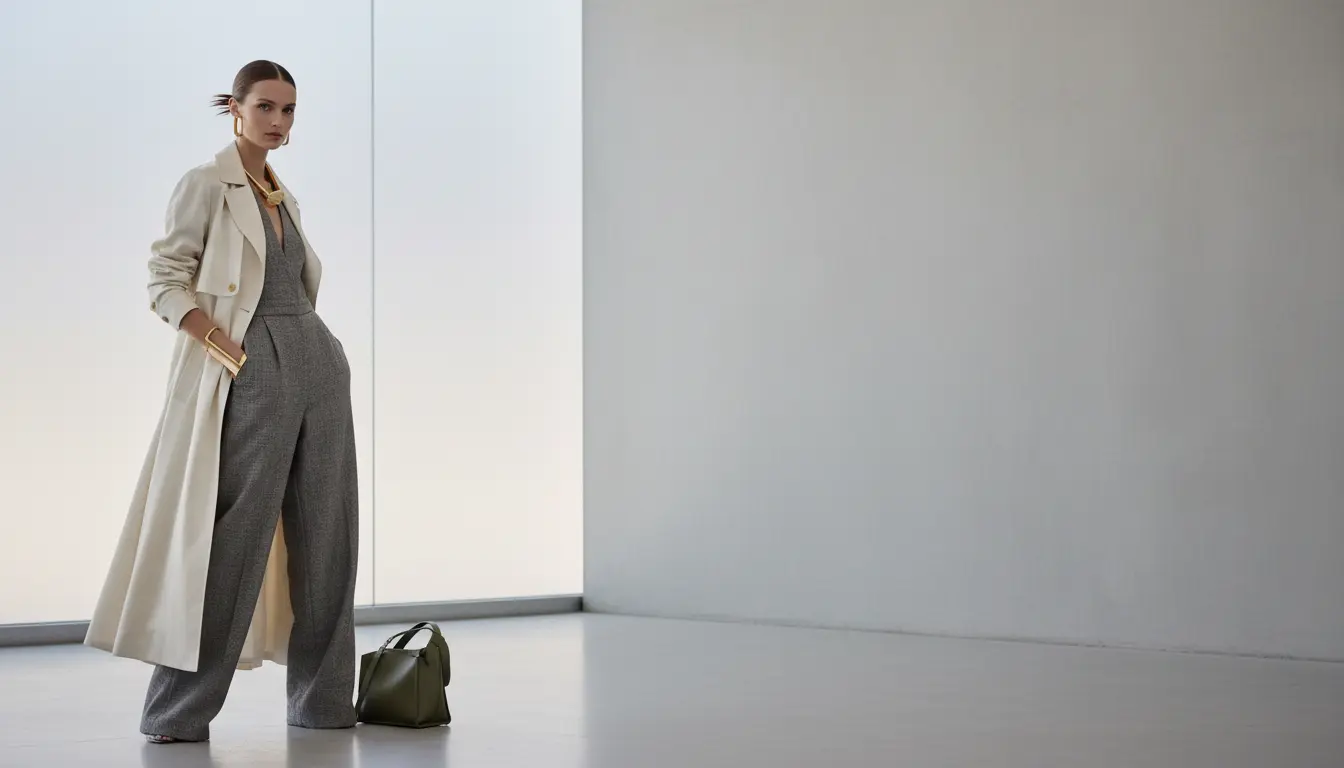
A strong AI Image Editor becomes more valuable when it connects to source generation, cleanup, motion, and final delivery.
If you still need the base concept, start in AI Image Generator, pick the most promising frame, and bring that visual direction into editing instead of guessing from scratch.
When the subject needs to sit naturally in a new scene, Remove Background can help you prep a cleaner source before you rebuild the layout in the editor.
Once the scene looks right, move that edited frame into AI Video Generator for short promos, motion ads, and cinematic variations that keep the same art direction.
See how to decide between regeneration and editing, how to preserve the right details, and how to keep layouts reusable across channels.
This workflow works best when the image already has the right core idea and you want to improve usefulness, polish, and placement fit.
Be clear about what must stay and what should change. That might be the subject, the product angle, the typography area, or the overall scene mood.
Good edits are not only aesthetic. They support the destination, whether that means extra negative space for copy, a cleaner ecommerce background, or a more premium campaign scene.
Once the image looks production-ready, hand it to design, move it into video generation, or sharpen it for delivery. Editing should remove blockers, not create another loop of rework.
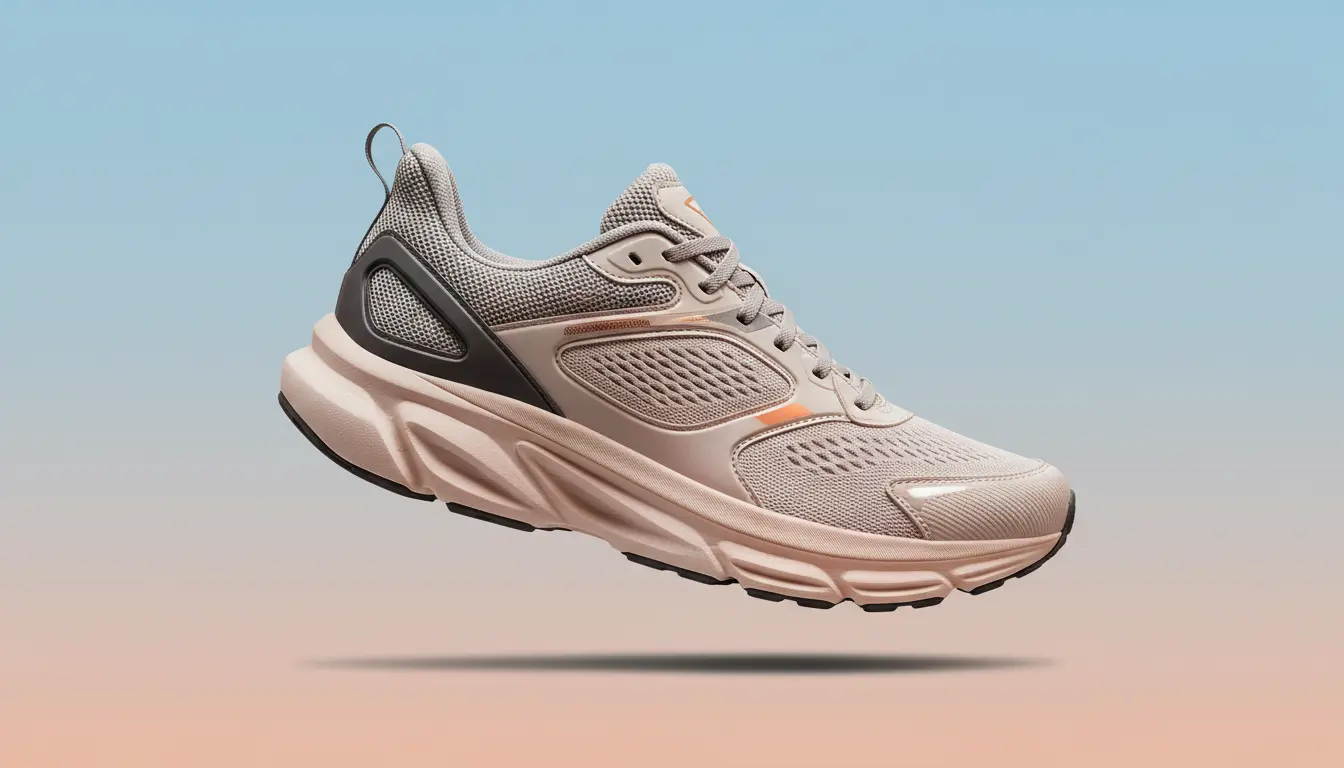
Common questions about scene changes, preserving details, and when editing is smarter than generating a brand-new image.
It works well for background swaps, composition cleanup, scene upgrades, canvas expansion, branded adjustments, and making one approved image fit a new placement.
Edit when the current image already has the right subject, mood, or composition and mainly needs refinement. Regenerate when the underlying concept is still wrong.
Yes. That is one of the most common uses, especially for product marketing, creator assets, and campaign visuals that need multiple environments.
Sometimes. If the final result depends on a very clean subject edge or transparent export, removing the background first can make later editing more reliable.
Yes. Many teams use an edited still as the visual anchor for AI Video Generator so motion work stays closer to the approved art direction.
That is usually a cue to move the approved edit into Upscale Image so the same composition can be delivered with cleaner detail.
Scene swaps - Better layouts - Faster reuse across channels